

Introduction
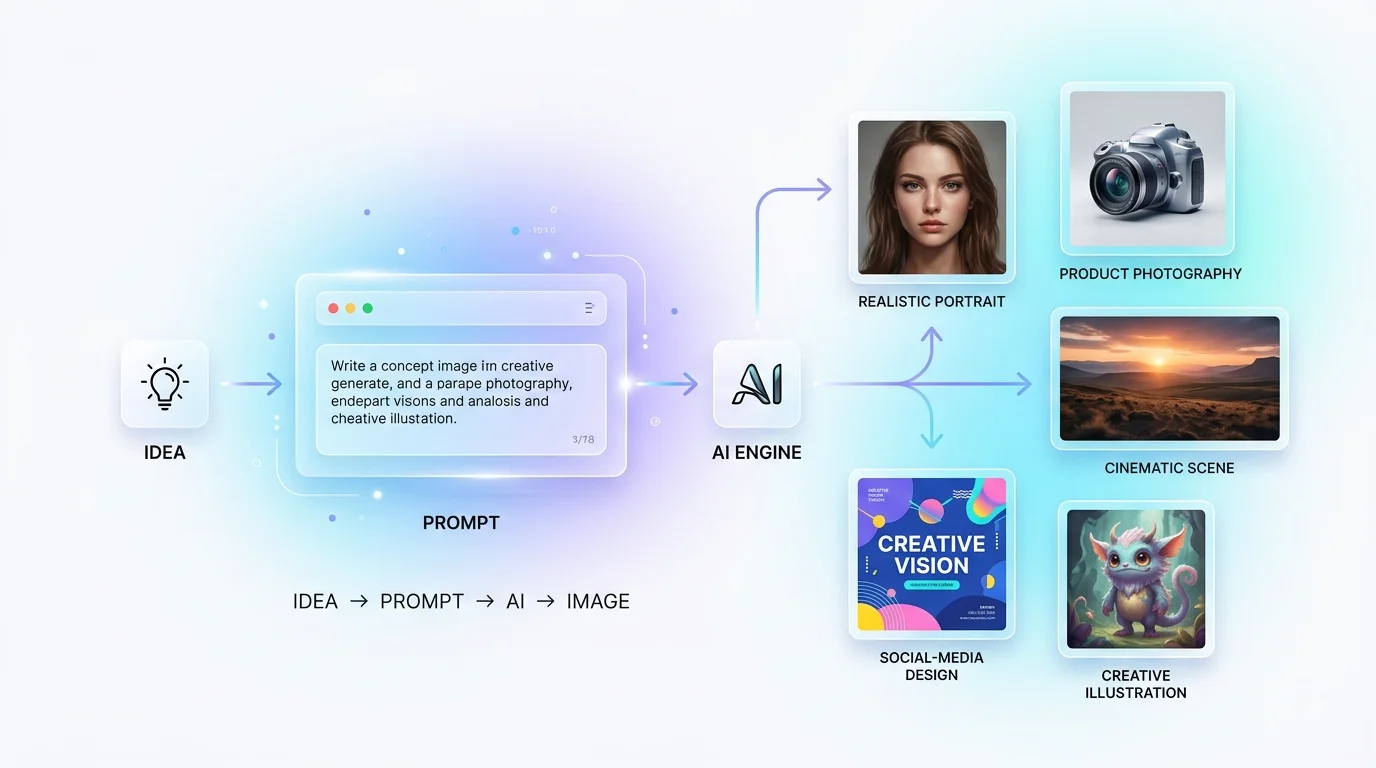
AI image generators can create product photos, portraits, advertisements, illustrations, social-media graphics, website banners, concept art, and many other types of visuals.
But simply writing:
“Create a beautiful image of a coffee shop.”
doesn't give you much control over the result.
A better prompt describes what you want, how it should look, where elements should appear, and what should be avoided.
The goal is not to write the longest prompt.
The goal is to give the AI the right information.
What Should a Good Image Prompt Contain?
A practical image prompt usually contains these elements:
1. Subject
What should appear?
A modern black smartwatch
2. Environment
Where is it?
On a premium studio table
3. Composition
How should it be arranged?
Centered with negative space above
4. Style
What should it look like?
Photorealistic commercial photography
5. Lighting & Color
What visual mood do you want?
Soft studio lighting with blue highlights
6. Format
Where will the image be used?
16:9 landscape composition
7. Constraints
What should the AI avoid?
No watermark, unnecessary text, or additional objects
A Simple Prompt Formula
You can use this structure for almost any AI image generator:
Create a [TYPE/PURPOSE OF IMAGE].

Subject:
[WHAT SHOULD APPEAR]

Environment:
[WHERE IT SHOULD APPEAR]

Composition:
[POSITION / CAMERA ANGLE / FRAMING]

Style:
[PHOTOREALISTIC / 3D / ILLUSTRATION / CINEMATIC]

Lighting & Colors:
[LIGHTING + COLOR PALETTE]

Format:
[16:9 / 1:1 / 9:16]

Constraints:
[WHAT TO AVOID OR KEEP UNCHANGED]
You don't need every section for every image. Use the details that matter.
Practical Example: Product Image
❌ Weak Prompt
Create an advertisement for a smartwatch.
✅ Better Prompt
Create a premium 4:5 product advertisement for a modern black smartwatch.

Place the smartwatch in the center on a dark reflective surface.

Use dramatic studio lighting with subtle blue rim lighting,
soft reflections, and a premium technology aesthetic.

Keep the background minimal and uncluttered.

Leave some negative space at the top for advertising text.

No watermark, additional products, or unnecessary text.
The second prompt gives the AI control information about subject + composition + style + lighting + purpose + constraints.
Practical Example: Social Media Image
Create a square Instagram promotional image for a summer clothing sale.

Show three stylish folded shirts on a clean white surface,
surrounded by subtle tropical leaves.

Use bright natural lighting, fresh colors, soft shadows,
and modern commercial photography.

Keep the center visually clean and leave space at the top
for promotional text.

No logos, watermark, or unnecessary objects.
Notice that the prompt describes the final use of the image, not just the objects inside it.
Practical Example: Creative / Cinematic Image
Create a cinematic 16:9 fantasy scene of an ancient city
floating above a massive ocean.

Show huge stone structures connected by glowing bridges,
waterfalls falling from the floating islands,
and a lone traveler standing in the foreground.

Use dramatic sunset lighting, golden clouds,
atmospheric fog, epic scale, and detailed fantasy concept art.

Create strong depth and a wide cinematic composition.
For creative images, visual storytelling, atmosphere, composition, and style become especially important.
Generating vs Editing an Image
AI can generate a new image or modify an existing one.
When editing, be very specific about what should change and what should remain unchanged.
❌ Weak
Change the logo.
✅ Better
Replace only the logo in the top-right corner with the provided logo.

Keep everything else exactly unchanged:
layout, colors, typography, background, illustrations,
spacing, shadows, and dimensions.

Do not redesign the provided logo.
Use it exactly as supplied.
This is especially important when editing logos, branding, product images, posters, or existing designs.
Using Reference Images
When something is difficult to describe with words, use a reference image if the AI tool supports it.
For example:
Image 1 = character reference
Image 2 = clothing reference
Image 3 = environment reference

Create a new image using:

- Character from Image 1
- Clothing style from Image 2
- Environment from Image 3

Keep the character's appearance consistent.
Reference images are particularly useful for characters, products, poses, environments, and visual styles.
Which AI Image Generator Should You Choose?
1. ChatGPT — Conversational Generation & Editing
Best for general-purpose image generation, conversational prompting, and making iterative changes to an image.
2. Gemini / Nano Banana — Reference-Based Editing
A good choice when you want to work with existing images, references, and make specific modifications while preserving important elements.
3. Midjourney — Cinematic & Artistic Visuals
Ideal for cinematic scenes, creative artwork, fantasy images, concept art, and highly stylized visuals.
4. Canva AI — Social Media & Marketing Designs
Useful when you need to generate an image and then quickly turn it into a social-media post, presentation, poster, or marketing graphic.
5. Freepik AI — Creative & Commercial Assets
Useful for creating marketing visuals, commercial graphics, social-media content, and other design assets.
Tip: There is no single "best" AI image generator. Choose the tool based on what you want to create and how you want to work with the result.
Iterative Prompting: Don't Try to Get Everything Right at Once
One of the most useful AI-image techniques is iterative refinement.
Start:
Create a professional coffee advertisement.
Then refine:
Make the background brighter and more minimal.
Then:
Keep everything else unchanged.
Move the coffee cup slightly to the right.
Then:
Keep the composition unchanged.
Add more negative space above the product.
Instead of rewriting the entire prompt every time, make targeted changes.
Common Mistakes to Avoid
❌ Too vague
“Make a beautiful image.”
❌ No composition
The AI doesn't know where important elements should appear.
❌ No intended use
A YouTube thumbnail and a website banner require different compositions.
❌ Too many conflicting instructions
Keep your visual requirements consistent.
❌ Changing everything during editing
If you only need to change the background, tell the AI to change only the background.
❌ Expecting the first generation to be perfect
Generate → evaluate → refine.
Copy-Paste Prompt Template
Save this template for your next project:
Create a [TYPE OF IMAGE] for [PURPOSE].

Subject:
[MAIN SUBJECT]

Environment:
[LOCATION / BACKGROUND]

Composition:
[POSITION / CAMERA ANGLE / FRAMING]

Style:
[VISUAL STYLE]

Lighting & Colors:
[LIGHTING / COLOR PALETTE]

Format:
[16:9 / 1:1 / 9:16]

Text:
[EXACT TEXT, IF REQUIRED]

Constraints:
[WHAT TO AVOID OR KEEP UNCHANGED]
Final Thoughts
Effective AI image generation isn't about writing extremely long prompts.
It's about being clear, specific, and intentional.
Remember this simple workflow:
Define → Prompt → Generate → Evaluate → Refine
Whether you're creating a product advertisement, portrait, social-media graphic, website banner, cinematic scene, or illustration, give the AI enough information to understand your visual goal.
Don't write the longest prompt. Write the prompt that communicates what matters.
Enthusiastic junior full stack web developer with a strong foundation in modern web technologies. Passionate about learning, coding, and building reliable applications.