


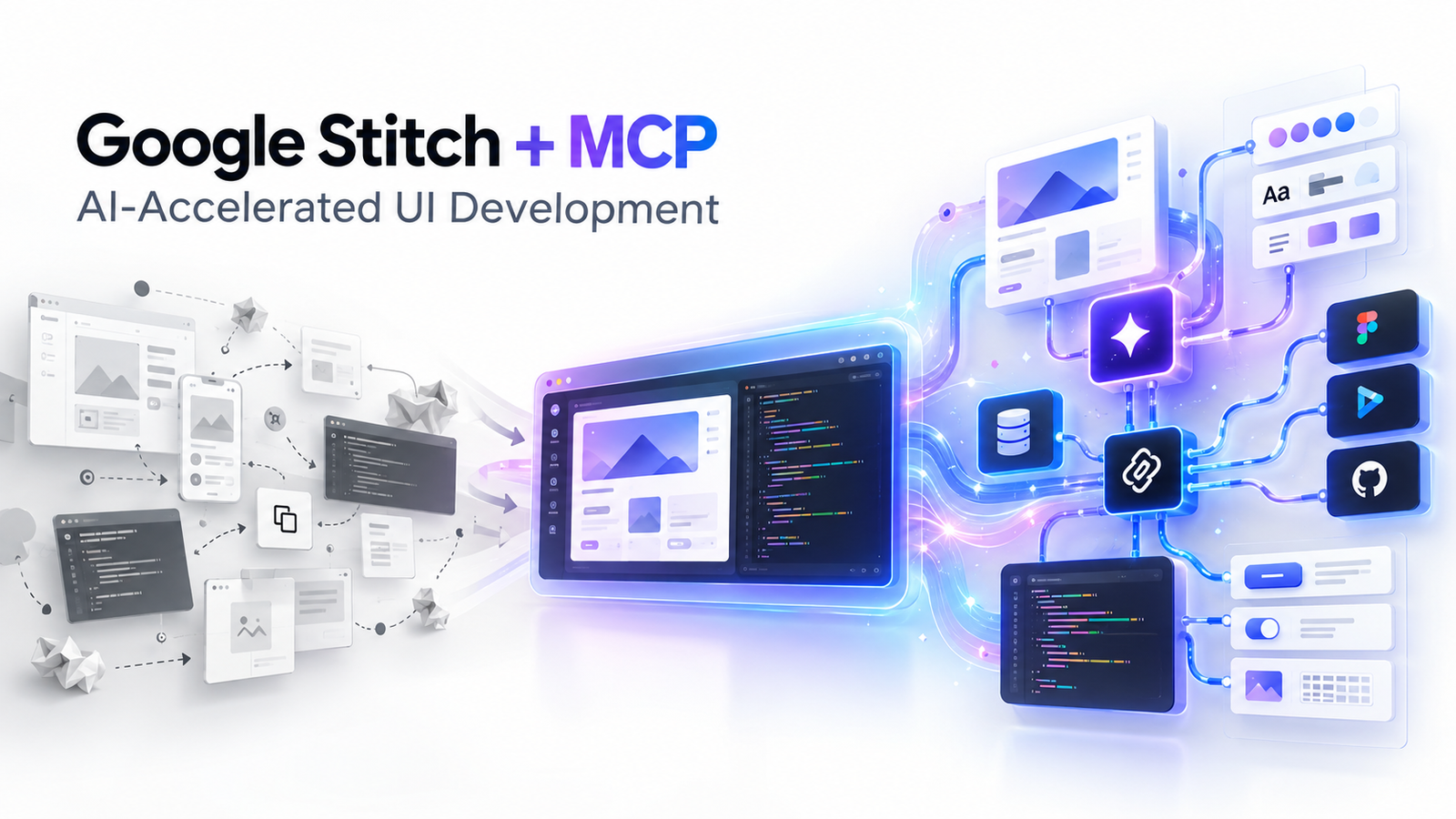
If you build web applications using modern AI tools, translating visual UI designs into working code can take significant time. By connecting Google Stitch’s Model Context Protocol (MCP) server directly into Cursor, your AI assistant gains "eyes" to inspect design screens, pull design tokens, and build matching UI components directly inside your workspace.
In this tutorial, we will walk through how to set up Stitch MCP in Cursor step-by-step, compare Project-Specific vs. Global configurations, and look at how to adapt the exact same setup for other MCP-compatible editors.
What is Google Stitch MCP?
Google Stitch is an AI-powered design platform. The Stitch MCP Server acts as a bridge, allowing AI coding assistants to inspect your Stitch design projects, download component HTML/CSS/Tailwind specs, and generate code that strictly adheres to your design system.
Because MCP is an open standard (think of it as the "USB-C" for AI tools), the server setup is host-agnostic. Once you understand the JSON structure, you can reuse it across almost any modern AI development environment.
Global vs. Project-Specific Setup in Cursor
Before creating configuration files, decide which scope fits your project:
| Feature | Project-Specific (.cursor/mcp.json) | Global (~/.cursor/mcp.json) |
| Best For | Production repos, team projects, scoped API keys | Personal sandboxes, quick individual prototyping |
| Security | High — API keys are isolated to single repositories | Lower — single key accessible across all folders |
| Team Sharing | Commit .mcp.json.example to guide teammates | Applies only to your local user environment |
For production applications and team workflows, Project-Specific setup is highly recommended.
Step-by-Step Guide: Setting Up Google Stitch in Cursor
Step 1: Create the .cursor Directory
In the root directory of your project, create a folder named .cursor and add an mcp.json file inside it:
Bash
mkdir -p .cursor
touch .cursor/mcp.json
Step 2: Add the Stitch Configuration
Open .cursor/mcp.json and insert your Stitch MCP configuration block.
Option A: Direct HTTP Endpoint (Recommended)
JSON
{
  "mcpServers": {
    "stitch": {
      "url": "https://stitch.googleapis.com/mcp",
      "headers": {
        "X-Goog-Api-Key": "YOUR_STITCH_API_KEY"
      }
    }
  }
}
Option B: Local Proxy / CLI Execution
JSON
{
  "mcpServers": {
    "stitch": {
      "command": "npx",
      "args": ["-y", "@_davideast/stitch-mcp", "proxy"],
      "env": {
        "STITCH_API_KEY": "YOUR_STITCH_API_KEY"
      }
    }
  }
}
Step 3: Secure Your Secrets
Never commit plain-text API keys to public or team repositories! Add .cursor/mcp.json to your .gitignore:
Plaintext
# .gitignore
.cursor/mcp.json
Tip: Commit a .cursor/mcp.json.example template with dummy values so team members know how to configure their keys.
Verifying the Connection in Cursor
- Open Cursor and go to Settings > Features > MCP.
- Confirm that
stitchappears under active servers with a green indicator. - Switch Cursor to Agent Mode and test the bridge with a prompt:
"Use the Stitch MCP connection to list all available projects and fetch design context from my main screen."
Beyond Cursor: Adapting the Config for Other AI Editors
Because MCP is an open standard, you don't have to re-invent the wheel if you switch tools. The core JSON object (mcpServers) remains virtually identical across clients:
1. VS Code (via Agent Extensions)
- Global Location: User Settings / Command Palette (
MCP: Configure Servers) - Project Location:
.vscode/mcp.json - JSON Structure: Identical to Cursor's
mcpServersschema.
2. Claude Desktop
- Global Location (macOS):
~/Library/Application Support/Claude/claude_desktop_config.json - Global Location (Windows):
%APPDATA%\Claude\claude_desktop_config.json - Config: Paste the same
"mcpServers": { "stitch": { ... } }object into your desktop config file.
3. Claude Code (CLI)
- Global Location:
~/.claude.jsonor run directly via CLI command: - Bash
claude mcp add stitch -- url https://stitch.googleapis.com/mcp
Summary Checklist for Production Workflows
- Scope Wisely: Use Project-Specific (
.cursor/mcp.json) configurations for team repositories to keep credentials isolated. - Protect Secrets: Always add your
.cursor/mcp.jsonto.gitignoreand share a.mcp.json.exampletemplate with your team. - Test the Bridge: Regularly verify your server health via Cursor Settings > Features > MCP to ensure continuous AI design context syncing.
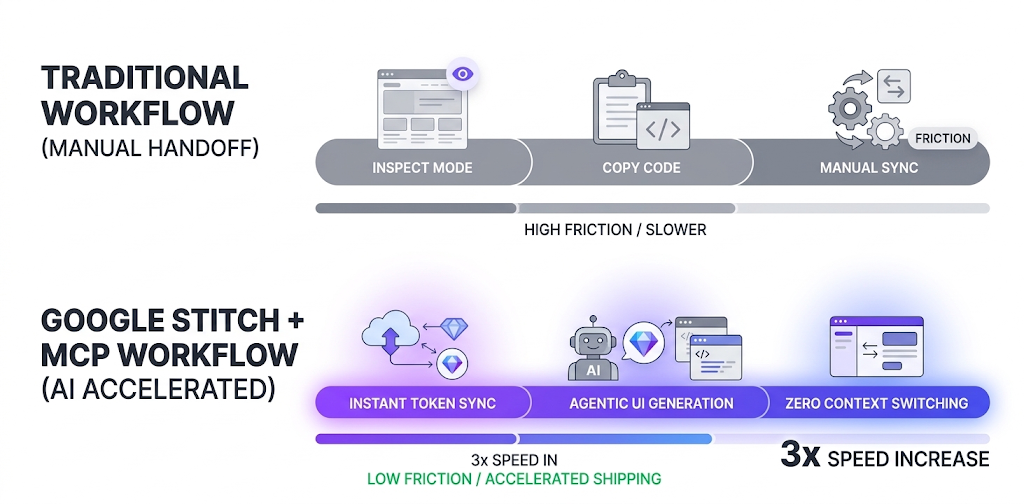
By integrating tools like Google Stitch directly into your workspace, you bridge the gap between design tokens and clean code, cutting down development friction and boosting overall shipping speed.
Frequently asked questions
Is the Google Stitch MCP Server free to use?
Yes, standard Google Stitch API tiers and remote MCP servers provide free access for developers.
Can I use the same API key across Cursor and Claude?
Yes, as long as your key has access to the underlying Google Cloud project, it works across any MCP client.
Why does my editor show "Disconnected"?
Verify your API key is valid, check for syntax errors in your JSON file, and ensure your network allows HTTP connections to stitch.googleapis.com.

Creative full stack web developer with strong problem-solving skills and expertise in modern web development technologies.